
Ledkia LED Cord DIMMER Switch
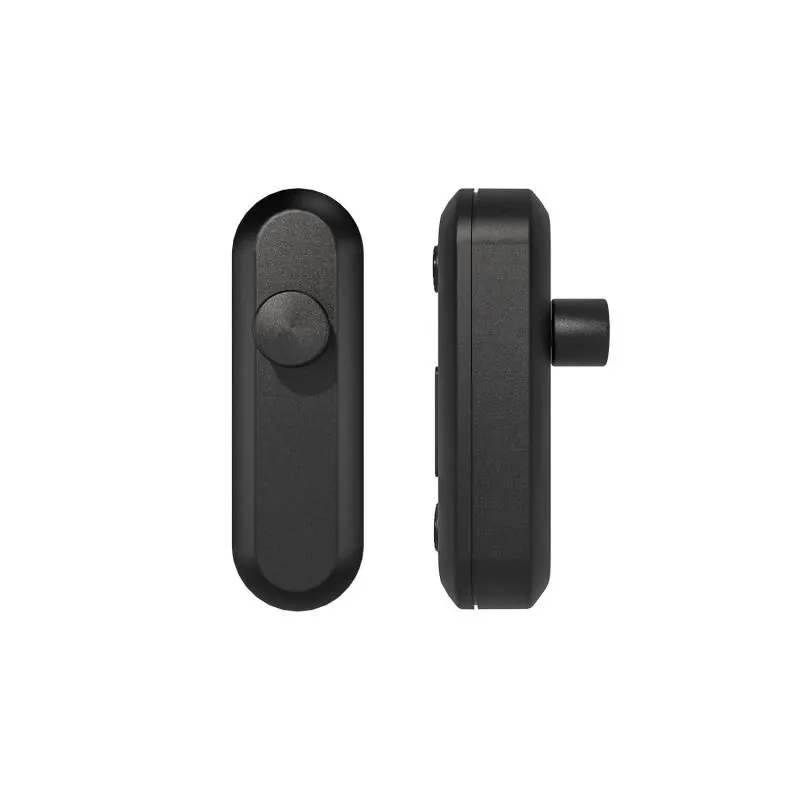
“The Smart Wi-Fi dimmer is powered by Tuya platform with excellent compatibility to most Dimmable LED lamps also works pefectly with halogen or eclectronic transformer and incandescent lighting. Possibiliity of wireless voice control via Alexa or Google home.”
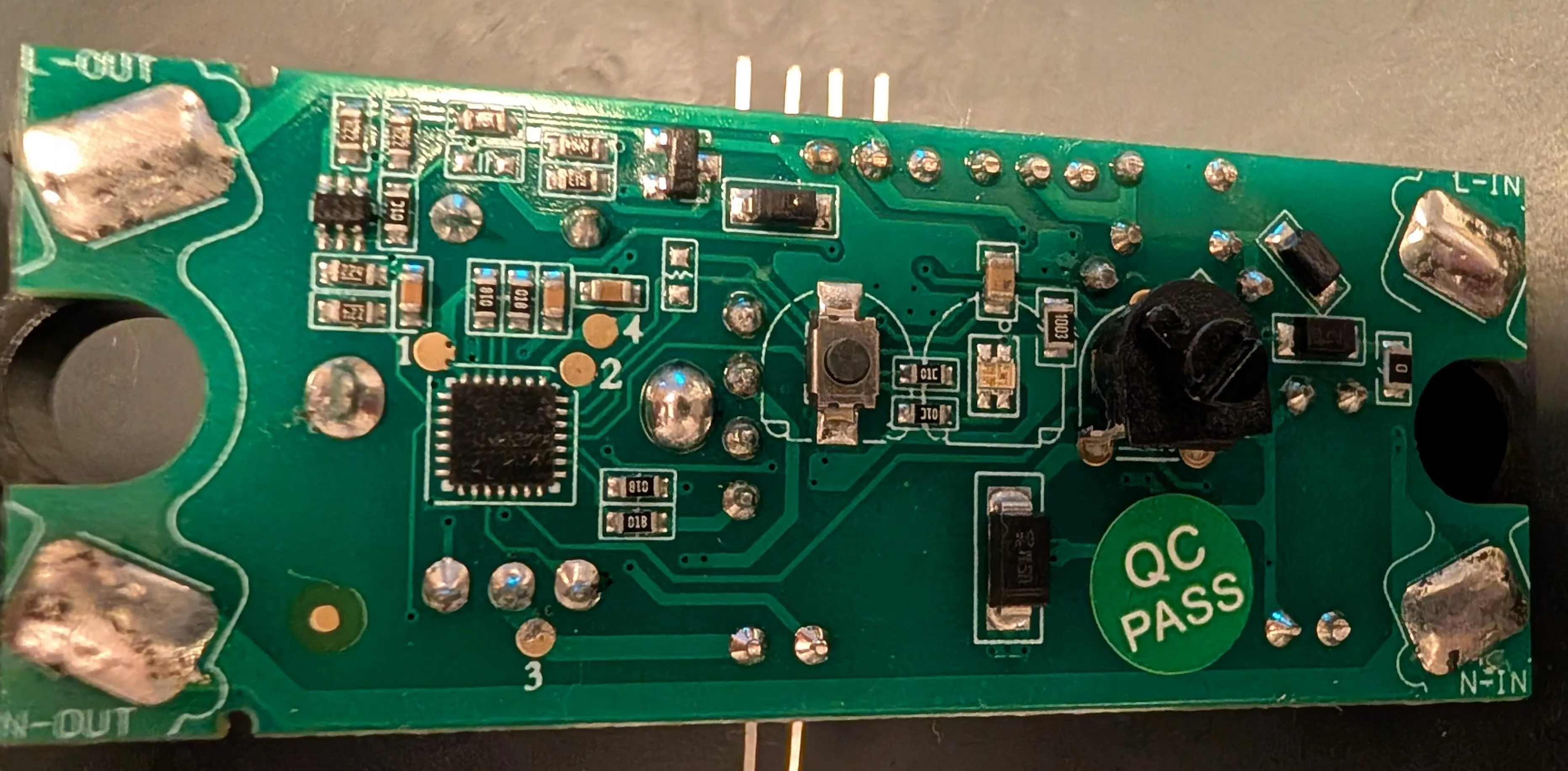
Also known as C152547 WIFI LED Cord Dimmer is a dimmer based on Tuya, with 2 microcontrollers. The dimmer side is controlled by stm microcontroller (Tuya MCU), and the Wi-Fi functionality by a Tuya WR3 module.
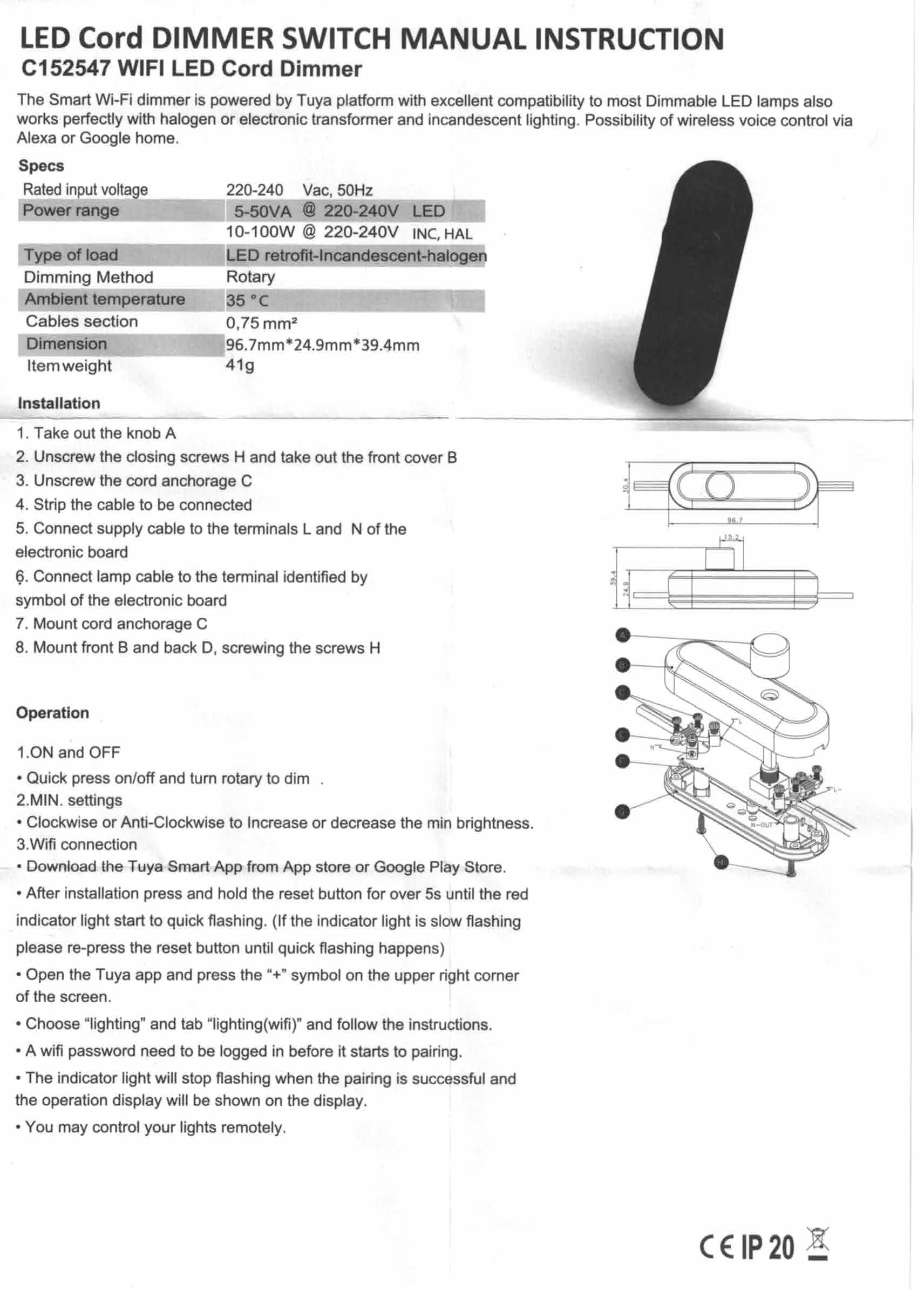
Specs
| Description | Value |
|---|---|
| Rated input voltage | 220-240 Vac, 50Hz |
| Power range | 5-50VA @ 220-240V LED |
| Power range | 10-100W @ 220-240 INC, HAL |
| Type of load | LED retrofit-Incandescent-halogen |
| Dimming Method | Rotary |
| Ambient temperature | 35°C |
| Cables section | 0.75 mm² |
| Dimension | 96.7mm X 24.9mm X 39.4mm |
| Item weight | 41g |
Original paperwork
Pinout
| Pin | Function |
|---|---|
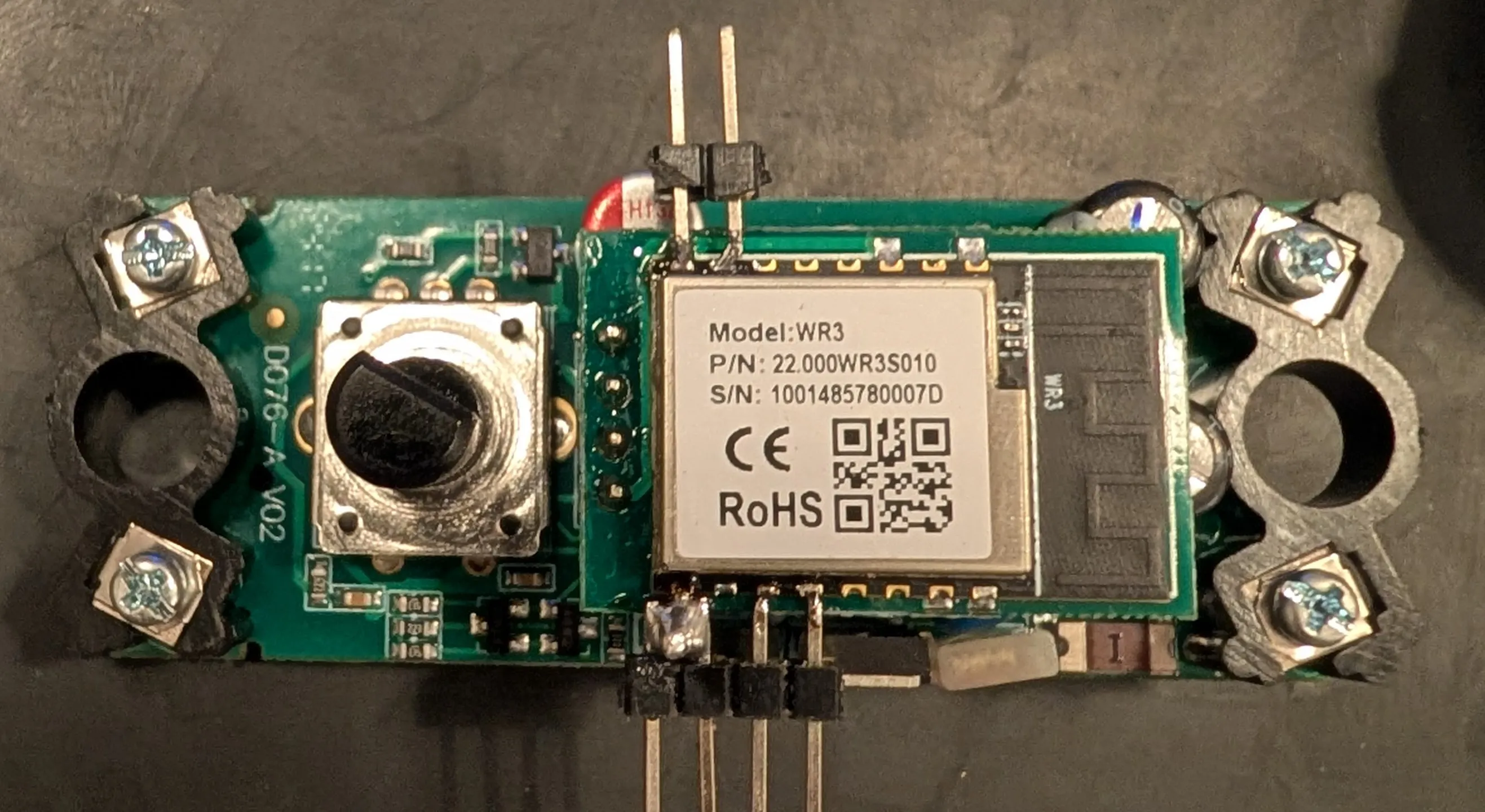
| GND | Ground connection |
| 3V3 | 3.3V input for powering the controller |
| TX0 | Transmit pin connected to the Tuya MCU |
| RX0 | Receive pin connected to the Tuya MCU |
| TX2 | Transmit pin used for flashing/programming |
| RX2 | Receive pin used for flashing/programming |
Prerequisites
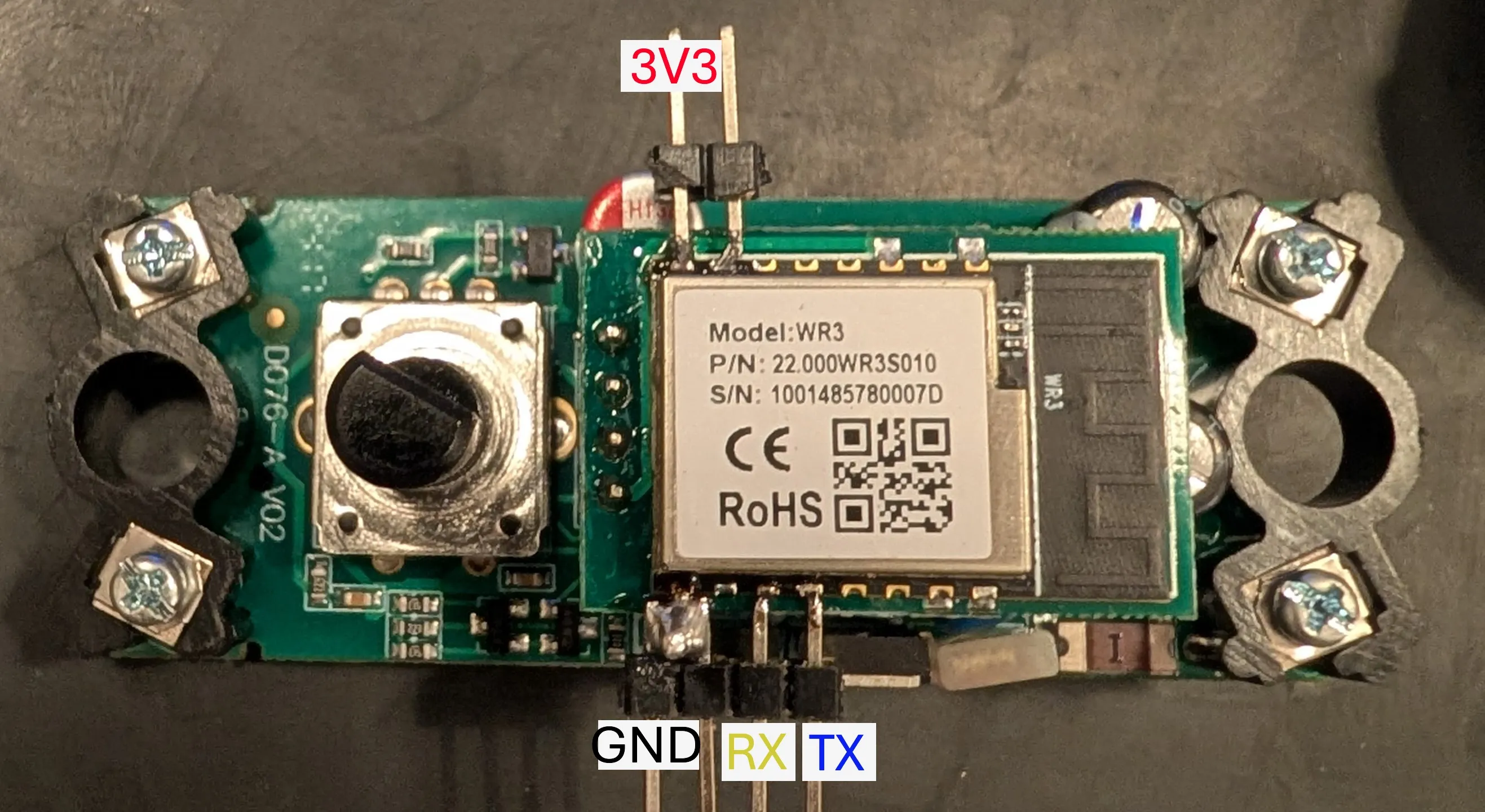
-
Connect your serial programming adapter to the WR3 module as follows:
-
GND → GND
-
3V3 → 3V3
-
RX → TX2 (TX in image)
-
TX → RX2 (RX in image)
Refer to the image above for the pinout layout.
-
-
If you haven’t already, download ltchiptool, a command-line utility for flashing and dumping firmware.
Note: The standard ESP flasher is not compatible with this device.
Flashing
IMPORTANT NOTE
BY NO MEANS SHOULD THE DEVICE BE CONNECTED TO THE MAINS WHILE FLASHING OR DEALING WITH THE DEVICE. RISK OF INJURY OR DEATH, AT MINIMUM YOU WILL FRY YOUR PC IF YOU TRY TO FLASH WHILE THE MAINS IS CONNECTED.
Before flashing or dumping firmware, the device must be placed in download mode:
- Short TX2 to GND.
- Power on the device by connecting 3.3V:
- the 3.3V and GND lines to an adjustable power supply, or the serial adapter.
- Connect the programming adapter to your PC.
ltchiptool will prompt you later to disconnect TX2 from GND.
Note: As an alternative to disconnecting and reconnecting power, you can also power cycle the device by shorting the EN pin to GND
Backing up the original firmware
Before flashing ESPHome, it’s highly recommended to back up the original firmware in case you want to restore the stock tuya functionality later. Run:
ltchiptool flash read realtek-ambz lcds_backup.uf2After issuing the command, disconnect TX2 from GND to begin the backup process.
Flashing ESPHome
- In the ESPHome device builder, after configuring your firmware, select: Install > Manual download, then click UF2 package to download the compiled binary.
- Put the device back into download mode (short TX2 to GND, then power on).
- Flash the new firmware using:
ltchiptool flash write realtek-ambz firmware.uf2Basic configuration
esphome:  name: Ledkia-LED-Cord-DIMMER  friendly_name: Ledkia LED Cord DIMMER Switch
rtl87xx:  board: wr3
# Enable logginglogger:
uart:  rx_pin: RX0  tx_pin: TX0  baud_rate: 9600
tuya:
# Create a light using the dimmerlight:  - platform: "tuya"    name: "Dimmer"    dimmer_datapoint: 2    min_value_datapoint: 0    switch_datapoint: 1    max_value: 1000
# Enable Home Assistant APIapi:  encryption:    key: !secret api_key
ota:  - platform: esphome
wifi:  ssid: !secret wifi_ssid  password: !secret wifi_password
  # Enable fallback hotspot (captive portal) in case wifi connection fails  ap:    ssid: "Dimmer Fallback Hotspot"    password: !secret fallback_wifi_password
captive_portal:
ESP32 migration
Stability of WR3 is not the best, changing the WR3 for a ESP32 module is recommended. I changed the WR3 for ESP12F WT0132C6-S5. You will have to check pad and footprint compatibility if choosing other module.
Be aware of the thermal fuse in the board, it is 130C rated and will trigger pretty easilly. It is very important to disable uart logging (baud_rate: 0), as the pins used by the tuya MCU are the same as the default UART port of ESP12F WT0132C6-S5.
esphome:  name: Ledkia-LED-Cord-DIMMER  friendly_name: Ledkia LED Cord DIMMER Switch
esp32:  board: esp32-c6-devkitc-1  framework:    type: esp-idf
# Enable logginglogger:  baud_rate: 0
uart:  rx_pin: GPIO17  tx_pin: GPIO16  baud_rate: 9600
tuya:
# Create a light using the dimmerlight:  - platform: "tuya"    name: "Luz"    dimmer_datapoint: 2    switch_datapoint: 1    max_value: 1000    icon: mdi:lamp
# Enable Home Assistant APIapi:  encryption:    key: !secret api_keyota:  - platform: esphome
wifi:  ssid: !secret wifi_ssid  password: !secret wifi_password
  # Enable fallback hotspot (captive portal) in case wifi connection fails  ap:    ssid: "Dimmer-C6 Fallback Hotspot"    password: !secret wifi_password
captive_portal: